Complete Guide to Safer Discord AI
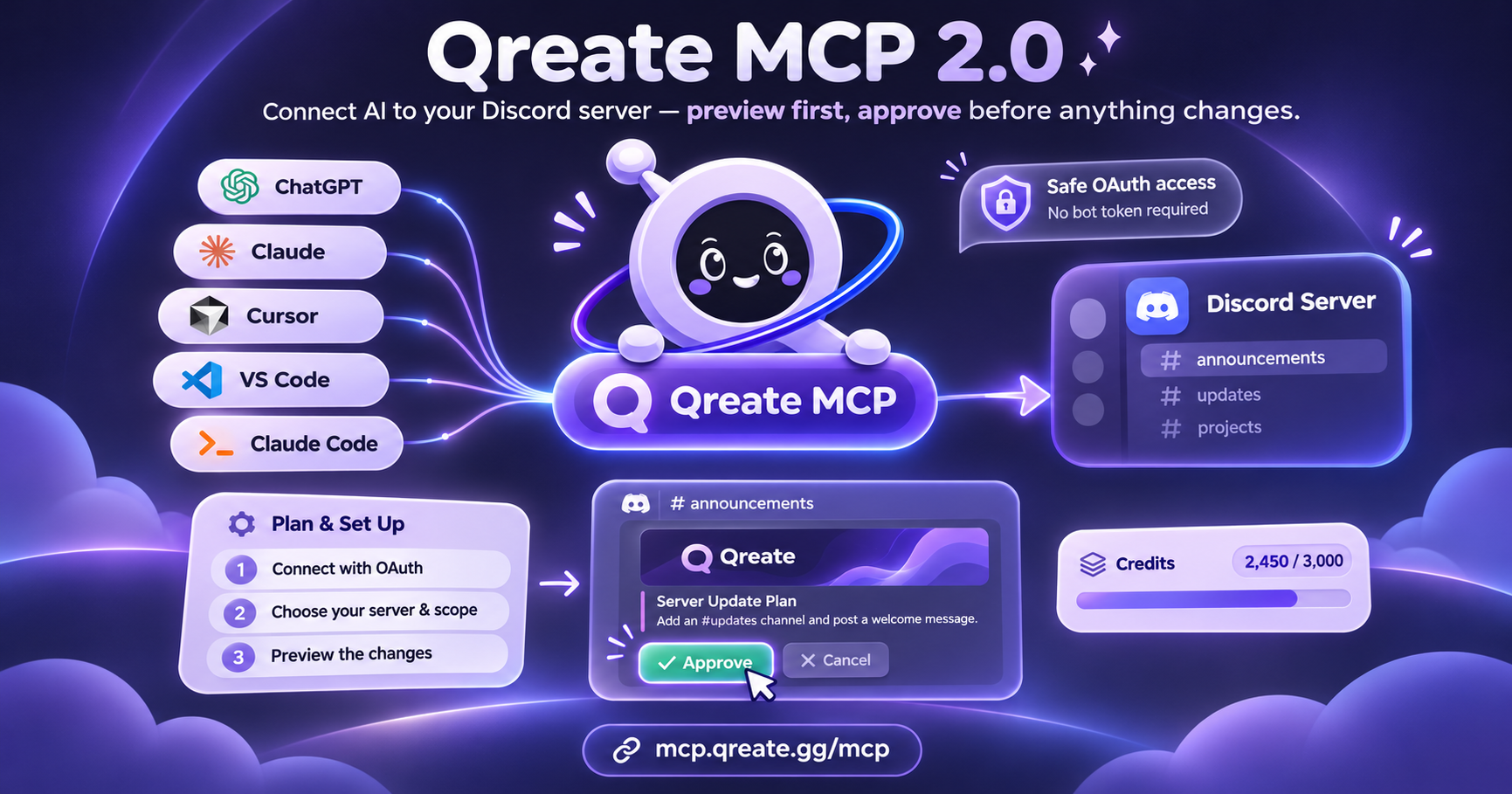
Qreate MCP 2.0 lets you manage a real Discord server from ChatGPT, Claude, Cursor, VS Code or Claude Code, without handing an AI your bot token or letting it change things without your approval.
Most people who try managing Discord with AI end up in one of two places. Either the AI writes a very confident list of instructions and they spend an hour clicking through Discord’s settings, or they give it a bot token and hope nothing unexpected happens.
Qreate MCP offers a third option. You connect an AI client, sign in with Discord, and work directly with your existing server. Qreate reads what is already there, proposes the changes, shows you a preview, and applies the approved version.
With version 2.0, that experience also includes visual panels, pictures, message previews and credit management.
The MCP server address is:
Here’s what you can do with it, what happens during an actual setup, and how to connect your preferred AI client.
What is Qreate MCP?
MCP stands for Model Context Protocol, an open standard for connecting AI applications to external tools.
Think of it as a way for ChatGPT or Claude to work with something beyond their own conversation.
In this case, that something is your Discord server.
Qreate knows your channels, roles, permissions, module settings and workflows. The AI handles the conversation, while Qreate handles the Discord operations.
You describe what you want. Qreate checks the real server, prepares the supported steps, verifies permissions and waits for approval before making changes.
The AI client never receives Qreate’s bot token, and connecting does not give it access to every Discord server you have joined. It can only work with servers you administer and have authorized.
That’s the important distinction. You’re not asking an AI to explain Discord settings. You’re asking it to work with your server through a controlled connection.
Qreate MCP 2.0 in action: one server setup
Imagine you’re building a fire department roleplay community.
You want a rank structure, private department channels, a rules panel, an application desk and a welcome message. Normally, that’s several rounds of role creation, permission editing and bot configuration.
With Qreate MCP, you can describe the outcome in one request.
For example:
Use Qreate to set up my server as a fire department. Ranks from Chief down to Probationary. Each rank should see its own channels and those of lower ranks. Add a rules panel and a ticket desk for applications.
The following is an illustrative walkthrough of the supported planning and approval process.
1. Qreate reads the server before planning
Instead of inventing a structure without context, Qreate first checks the existing channels, roles, permissions and relevant modules.
Suppose it finds an existing #general channel. Before moving that channel behind a rank requirement, it asks whether you want to keep it public.
You answer that #general should remain available to everyone.
That decision becomes part of the plan. You don’t have to explain your entire server from scratch.
2. You get a plan, not a list of instructions
Qreate MCP produces a numbered setup plan. In this example, it would contain five parts:
- Roles: Create the department’s rank ladder and divider roles in the correct order.
- Channel access: Configure which ranks can see and use each department channel.
- Rules: Prepare a rules panel written for the community.
- Applications: Configure a ticket desk with the designated command staff role.
- Welcome: Draft a welcome message with the appropriate buttons.
Each supported step identifies the relevant module, the roles and channels it touches, and what approval would apply.
At this point, nothing has changed in Discord.
3. You can change the plan before approving it
Maybe the proposed welcome title feels too generic.
In ChatGPT, the visual plan lets you edit that line directly. Once edited, Qreate offers to plan the revised version instead of applying the original.
That’s deliberate.
The version you approve must be the version Qreate prepared and showed you. A client cannot quietly replace it with a different set of instructions between preview and execution.
4. You see the Discord message before it is posted
Qreate MCP 2.0 can show supported messages in a visual panel that resembles their final Discord appearance.
The preview can include the embed’s accent colour, title, text, banner, footer, custom emoji and link buttons.
For the department welcome, you could attach an official department patch and ask Qreate to use it as the image.
Qreate can save the picture to the server’s asset library and incorporate it into the draft.
You review the result, change anything that needs work, and approve the final version.
5. Qreate applies the approved changes
Once you approve the stored plan, Qreate executes the supported changes and reports the results, including anything that could not be completed.
Publishing the drafted welcome message requires its own approval.
You can then open Discord and inspect the actual server, rather than copying an AI response into the dashboard and building everything yourself.
The point isn’t that every possible server can be completed in one prompt. It’s that planning, reviewing and applying supported changes happen within one connected workflow.
What can Qreate MCP 2.0 do?
The connection goes well beyond creating roles and channels. These are the main capabilities documented for the current release.
Read and understand your existing Discord server
Ask Qreate MCP to inspect your channels, roles, permissions and module configuration.
A simple request such as “Find what’s broken on my server” can produce a health check and a proposed fix for supported problems.
It works with the actual server state, not a structure the AI guessed from your description.
Create plans and apply approved changes
You can ask for channel structures, rank-based access, welcome flows, verification, support desks and other supported configurations.
Qreate prepares a plan you can inspect before applying it. If the server has changed since the plan was created, or you have requested a newer plan, the outdated plan cannot be applied.
Applied batches can also be reversed through Qreate’s undo functionality.
Draft announcements and Discord messages
Qreate MCP supports messages with text above the embed, custom embed formatting, images, author details, footers and up to five link buttons.
It also supports formats such as welcome messages, giveaways, changelogs, feed posts and level-up announcements.
You see the message before it is published. If you change a draft, the previous approval is no longer enough to publish the edited version.
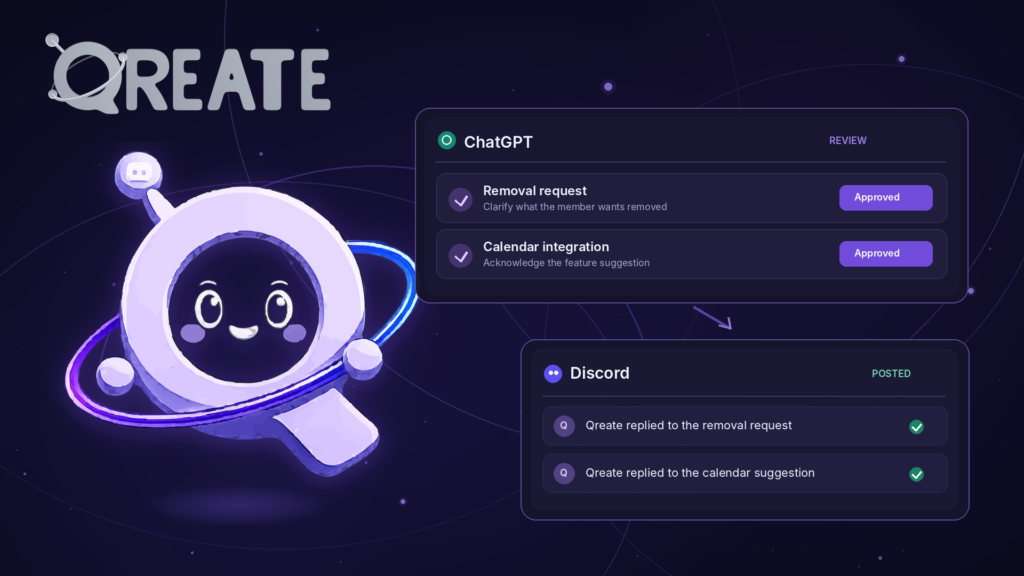
This is the same principle behind our real support-ticket experiment with ChatGPT, where Qreate prepared replies for review before delivering them to members.
One small Discord detail matters here: an @everyone mention belongs in the message text above the embed, not inside it. Discord does not send mention notifications from embed content.
Work with images and visual panels
You can attach an image in a supported client or provide a public HTTPS image URL. Qreate saves it to the server’s asset library and can use it in posts and panels.
Supported formats include PNG, JPEG, WebP and GIF, with a 15 MB file limit.
Where image generation is available, Qreate can also prepare new banner or post artwork. It shows the credit estimate before generating anything.
Visual panels make the difference especially noticeable in ChatGPT. Instead of reading a wall of configuration text, you can inspect a proposed message or a structured setup and edit what needs changing.
Clients without visual panel support still receive the information in text.
Check credits and use ready-made setups
Ask how many Qreate credits remain, when they reset or what an image generation request would cost.
Qreate can also provide usage information and the Top.gg voting link when you’re out of credits.
For new configurations, you can start with Workshop scenarios and recipes, including support desks, verification gates and event-related setups.
These are planned against your own server rather than blindly copying somebody else’s channel names.
Why Qreate MCP doesn’t need your bot token
Many self-hosted Discord MCP integrations require you to create a separate Discord application, retrieve a bot token and run the connector yourself.
That’s a valid approach for developers who understand the permissions and infrastructure involved. But a bot token is a powerful credential, and it does not automatically provide a review process for AI-generated actions.
Qreate MCP uses a different model.
You authenticate through Discord and approve the connection. Qreate then independently verifies which servers you administer on every request.
The connection uses OAuth with scoped permissions, so an AI instruction cannot grant itself access to another server. For background on Discord’s authentication system, see the official Discord OAuth2 documentation.
There are also separate checks for planning and execution.
The plan is stored on Qreate’s side. Applying it refers back to that stored version rather than accepting a new list of changes from the AI.
And when an operation involves publishing a Discord message, you get to review that exact draft before it goes live.
We also document delivery failures. A message that cannot be posted correctly should not silently become a half-empty embed, something we covered when investigating missing Discord message content.
What Qreate MCP will not do
Some operations are intentionally unavailable through connected AI clients.
- Delete channels, roles or messages.
- Ban, kick or time out members.
- Change what Qreate itself is permitted to do.
- Apply unapproved server changes.
- Publish a message without prior review and approval.
Those destructive and moderation operations remain available through the Qreate dashboard, where an administrator performs them directly.
Deleting a channel is not the same as drafting a welcome message. Moderation also affects someone who is not participating in the AI conversation.
We don’t think those decisions should be delegated to a connected model.
How to connect Qreate MCP to your AI client
You need a Discord server you administer, a Qreate account and the Qreate bot installed on that server.
If the bot is missing, Qreate can provide the installation link during onboarding.
The connection address is the same across supported clients:
ChatGPT
The easiest route is to install Qreate from the ChatGPT Plugin directory.
Sign in with Discord, approve the connection, then select Qreate in a supported ChatGPT conversation using @.
For manual setup, open ChatGPT Settings, enable Developer mode under Security and login, then visit chatgpt.com/plugins. Add the Qreate MCP address as the server URL, create the plugin and install it.
The official Qreate MCP setup guide includes the full procedure and ChatGPT-specific controls.
Claude
Open Qreate in the Claude Connectors Directory and select Connect.
Alternatively, create a custom connector named Qreate using the MCP address above.
Authorize the connection through Discord, then start asking Claude about your server.
Claude Code
Add Qreate MCP as a remote HTTP server from your terminal:
claude mcp add --transport http qreate https://mcp.qreate.gg/mcpThen open Claude Code and run:
/mcpYou can also use claude mcp login qreate to begin authentication.
Sign in and approve the requested access.
Cursor
Open Cursor’s MCP settings and add a server named qreate using the address above.
You can also configure it in mcp.json:
{
  "mcpServers": {
    "qreate": {
      "url": "https://mcp.qreate.gg/mcp"
    }
  }
}
Authorize the connection when Cursor prompts you.
VS Code with GitHub Copilot
Open the VS Code Command Palette, select MCP: Add Server, choose HTTP, and paste the Qreate MCP address.
Alternatively, add this configuration to .vscode/mcp.json:
{
  "servers": {
    "qreate": {
      "type": "http",
      "url": "https://mcp.qreate.gg/mcp"
    }
  }
}
Complete the authorization flow and use the connection through a compatible MCP-enabled chat experience.
For other clients, look for remote MCP support using Streamable HTTP and OAuth authentication.
Your first request with Qreate MCP
Once connected, start with something simple:
Use Qreate to inspect my Discord server and suggest three improvements.
Qreate identifies the servers available to you, asks you to select one if needed, and reads its current configuration.
It can then ask a relevant question and suggest improvements the platform supports.
You might choose a welcome flow, a cleaner channel structure or a ticket desk. Qreate prepares the plan and waits for you to approve it.
If you would rather start from scratch, ask it to set up a new Discord community around your idea.
You don’t need to know every Qreate module or Discord permission setting before beginning. The point is to describe what you want and inspect the proposed result.
You can also disconnect an AI client from your Qreate account whenever you want. That stops future access, although changes you already approved remain on the server.
One connection, your server, your decision
Qreate MCP 2.0 is about removing the manual work between an idea and a working Discord setup, without removing the administrator from the decision.
You can ask ChatGPT to inspect a server, use Claude to plan a configuration, work from a development tool, or prepare a Discord announcement with a visual preview.
Qreate handles the supported server operations. You see the proposed changes and decide what actually goes live.
Start with the Qreate MCP documentation, or open Qreate to connect your server.
Q proposes. You approve.