
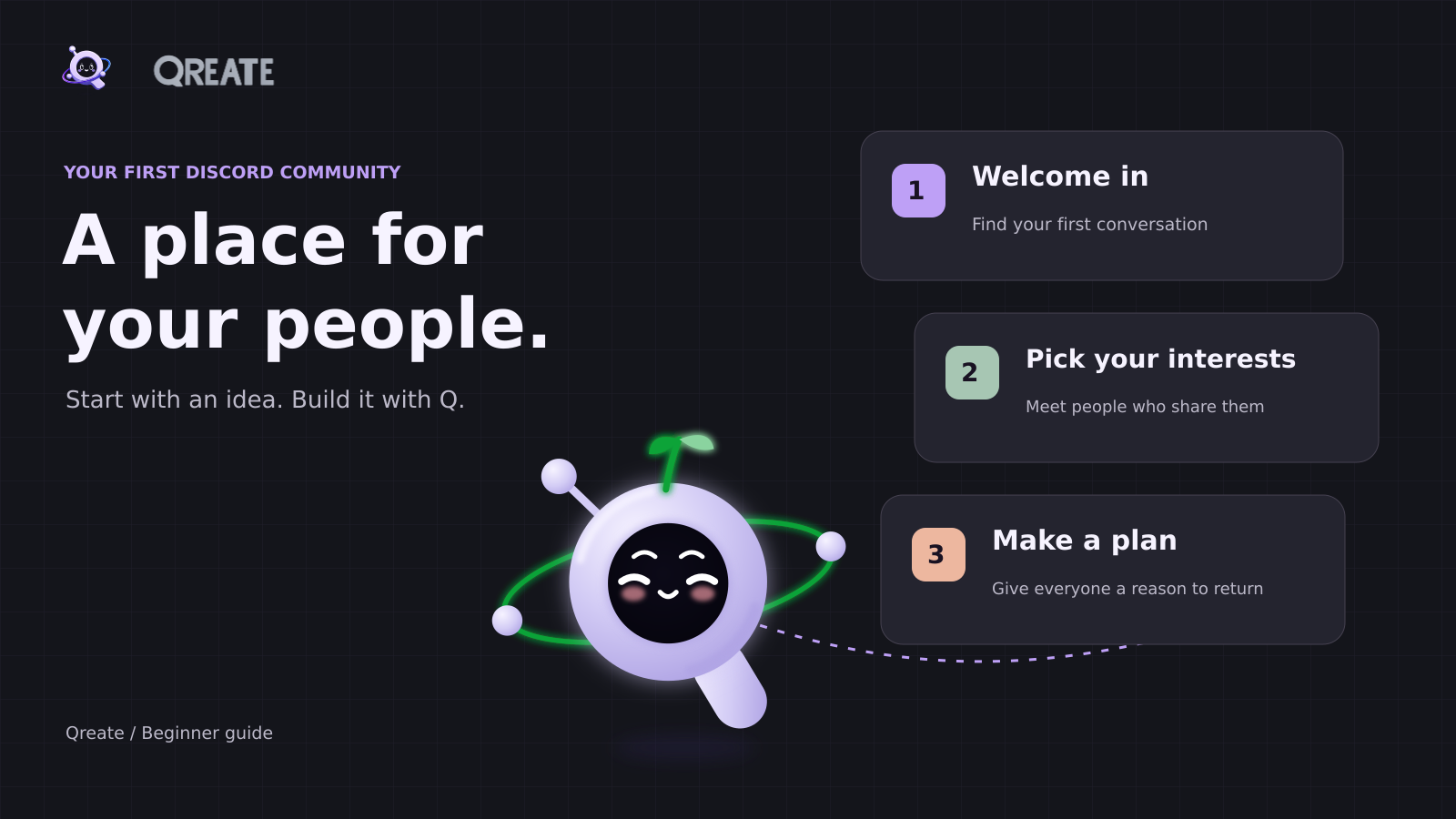
A Discord server is a shared online space where people can chat, join voice conversations and spend time around something they care about. You create the space, organise it into channels and invite people to join. It can be a small circle of friends, a book club, a study group or the community around your work.
Have an idea for a community, but no idea how to set it up? Start with Qreate. Describe what you want to Q, our assistant for building and running Discord communities. Review the proposed setup, ask for changes and approve it when you are ready. If you get stuck, our team is here to help.
Start your Discord community with Qreate for free → · Ask our team for help
What does a Discord server do?
Imagine opening a space for your local photography group. People need somewhere to introduce themselves, share photos, ask questions and arrange the next walk. A Discord server gives those conversations their own places, so the meeting details have a home and people can keep discussing their pictures afterwards.
The server belongs to an owner, who can give other people permission to help manage it. Members join through an invitation or another available joining method. You decide how your server is organised and who can access each area.
Discord hosts the community space. Creating a normal Discord server does not involve renting a computer or installing server software.
Qreate helps you set up and manage that space. For the photography group, you could ask Q to prepare a welcome, let people choose their interests and organise an event with sign-ups. Start with one useful setup and build from there.
Discord terms, explained through your first server
You will meet a few unfamiliar words. Here is what they mean in practice.
| Term | What it means | How you might use it with Qreate |
|---|---|---|
| Server | The whole community space | Connect it to your Qreate workspace |
| Text channel | A place for messages, pictures and discussion | Send a welcome to #start-here |
| Voice channel | A place people can join to talk | Give your group somewhere to meet |
| Category | A group of channels | Keep your welcome and rules together |
| Role | A label with permissions or a community purpose | Let members choose interests or give helpers access |
| Bot | An app added to a server to perform supported tasks | Add Qreate for welcomes, roles, support and activities |
| Thread | A conversation attached to a message | Discuss a daily question in its own thread |
You can learn these as you go. Qreate has a dashboard for changing settings directly, and you can ask Q to explain a proposed setup before approving it.
Ask Q:
I'm new to Discord. I want a community for people learning photography. Explain the first setup in plain English, suggest a small layout and tell me what I need to do myself. Prepare supported changes for my review.
Why start a Discord server with Qreate?
Your first challenge is deciding what people should do when they arrive. A welcome needs a destination. An interest role needs a purpose. A weekly event needs a clear way to join.
Qreate's Discord server builder helps turn that idea into supported settings you can inspect. Q can look at your existing server, prepare a proposal and help you adjust it. The dashboard keeps the settings available when you want to change something yourself.
After setup, the same platform handles everyday work such as welcoming members, running role panels, managing tickets and publishing scheduled messages. You can add activities when your community is ready for them.
And there are people behind the product. You can contact Qreate support, join our Discord or follow a guide in the documentation. Tell us what you want your server to do, even if you do not know the Discord name for it yet.
How to create a Discord server with Qreate
1. Create your server in Discord
On Discord's desktop app or browser version, find the + button in the server list. Choose Create My Own, follow the prompts, give your server a name and press Create. You can change the name and icon later.
That first empty server is enough. Discord's official server creation guide shows the process if you need it.
2. Connect your server to Qreate
Create your free Qreate account, then open the dashboard and add or select the Discord server you manage. Follow the authorisation flow to connect the bot.
Use the Discord account that owns the server or has the appropriate management permissions. Qreate also needs access to the channels where its features will work. When it assigns roles, its bot role must sit above those roles in Discord's role list.
Our getting started guide walks through those checks. If you are unsure which permission is missing, ask us and include your server's name and what you were trying to set up.
3. Tell Q what your community is for
Open Q in your workspace and describe the people you want to bring together. A useful first request includes the topic, what members should do and the feeling you want the space to have.
Ask Q:
I'm starting a friendly book club for beginners. Help me prepare a welcome, simple rules, a place to chat and interest roles for fiction and non-fiction. Explain each suggestion and show the proposed changes before applying them. Keep the first setup small.
Q's proposal is the point to make adjustments. If a name feels too formal or a role has no clear purpose, ask for a revision. When a request needs several stages, finish and check one stage before moving on.
See how to build with Q for the full workflow. Q supports particular setup actions within Discord's permissions, so ask it to explain any part that needs your manual input.
4. Give your first visitor a clear next step
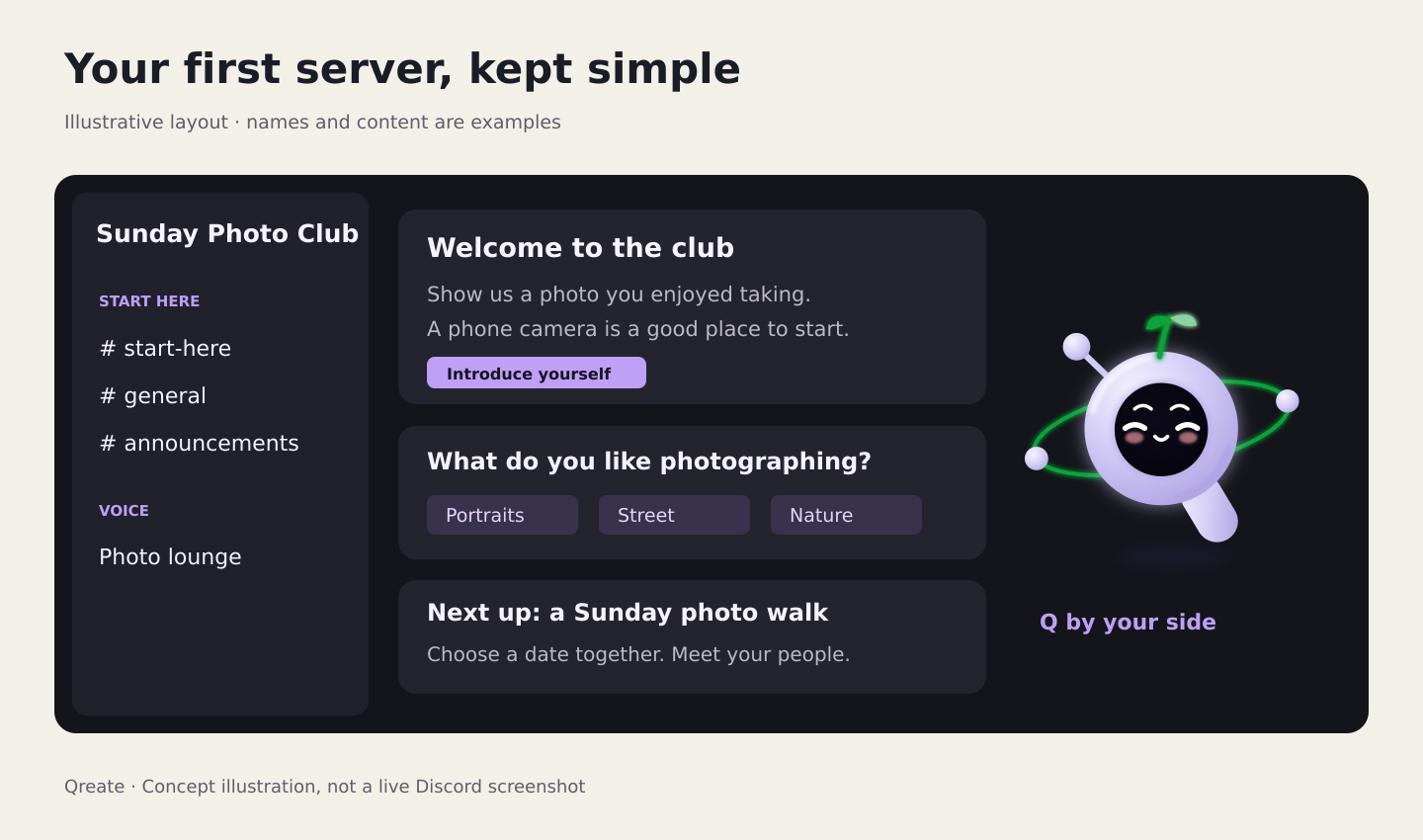
A useful starter layout might have #start-here, #general, #announcements and one voice channel. These are suggested names. Your topic can shape them.
Prepare a short greeting through welcome messages, add understandable rules and give people a reason to introduce themselves. For a book club, that could be the book they last finished. For a study group, it might be the subject they are working on this week.
Ask Q:
Prepare a welcome for my book club. Point new members to the rules and invite them to say what they are reading. Keep the message warm and short. Show me the text and the destination channel before anything is sent.
5. Let members choose what interests them
Qreate's role panels let members choose roles through buttons or a select menu. A photography group might offer Portraits, Street and Nature. A creator community could offer Updates and Live sessions.
Choose roles that help people participate or control notifications. You can add more after members show you what they need.
Ask Q:
Prepare a role selection panel for Portraits, Street and Nature photography. Explain what each choice does and show which roles and channel the panel will use. These should be interest roles with no staff permissions.
6. Give people something to come back for
For your first activity, choose something you can participate in yourself. Try a question, a small event or a vote about what happens next.
Q of the Day can publish questions written by Q or supplied by you, with a discussion thread on each post. You choose the schedule and can preview a sample before activation. Events offer button-based RSVPs, while polls help members make a choice together.
Ask Q:
Help me prepare Q of the Day for a photography group. Suggest a question style beginners can answer without expensive equipment. Use Europe/Amsterdam for the schedule, show a sample and explain the settings before activation.
Ask Q:
Prepare a proposal for a Sunday photo walk with an RSVP message. Ask me for the date, time and location first, then show the event details and where the message will appear.
7. Test the experience before sharing your invite
Invite someone you trust to try the server as an ordinary member. Ask them to find the welcome, choose an interest role and join the first activity. Check that staff areas stay private and that the bot can post where it needs to.
If something fails, bring that specific example to Q or our support team. A screenshot of the message or setting helps us understand what happened. Once the basic path works, share your invite with the people you want to welcome.
What else can you set up with Qreate?
Your server can grow around the way members use it. These are useful next steps when the need appears.
| Your community needs | What to explore |
|---|---|
| A private way to ask staff for help | Support tickets |
| A way to collect applications or structured requests | Forms and applications |
| Clearer entry requirements | Verification |
| Help handling unwanted behaviour | Moderation |
| A recurring post or reminder | Scheduled messages and reminders |
| A series of actions triggered by something happening | Discord automations |
| A shared activity with submissions | Challenges |
| Community rewards | Reputation and the shop |
| Updates from a creator's channel | YouTube or Twitch feeds |
For a small group, a welcoming entrance and one recurring activity are a sensible place to begin. Choose the next feature in response to a real need.
New to Discord? You can ask us the basic questions
You can come to Qreate with "I want a place for my students" or "I made a server and have no idea what to do next." That gives us a starting point.
Ask Q in the app for help understanding settings. Use our support page to contact the team, including without an account, or meet us on Discord. Our setup guides are available when you want to follow the steps yourself.
For help with your setup, tell us the goal, your server's name and where you got stuck. If a support session needs access to your dashboard, the support access guide explains permissions, records and the exceptional access rules.
Is a Discord server free? What does Qreate cost?
A standard Discord server is free to create. Discord also offers optional paid extras.
Qreate has a Free plan for one server, with starter limits. You can begin without a payment card. Pro adds higher limits, advanced features and coverage for two servers. Check the current Qreate plans for the features and terms that fit your setup.
For your first server, start free. You can decide about upgrades once you know what you want to build.
Frequently asked questions
Do I need coding skills to create a Discord server?
You can create the server through Discord's interface and configure supported Qreate features through the dashboard or by talking to Q. No programming is required for those steps.
Is Discord only for gaming?
People also use Discord for study groups, hobbies, creative work and professional communities. Your server's topic and activities can reflect the people you want to bring together.
Can Qreate create the Discord server itself?
Create the server in Discord first, then connect it to Qreate. Q helps with supported setup and ongoing management after connection. Review what each proposal will change before approving it.
Can I use Qreate on a server I already have?
Yes. Connect the server you manage and work with its existing setup. Ask Q to inspect it and suggest a small first improvement.
Can I use Qreate through ChatGPT or Claude?
Qreate offers connections for both. Follow the guides for Discord with ChatGPT or Discord with Claude. For a first setup, you can stay in Qreate's own workspace.
Where can I see more examples?
Visit the Qreate blog, explore the documentation or join our community and tell us what you want to make.
Bring your first community idea to Qreate
Start with the people and the reason they should meet. A few friends learning photography together is enough of an idea. Create the Discord server, connect it to Qreate and ask Q for the first setup you want to try.
Create your free Qreate account →
Want a hand with the first steps? Talk to the Qreate team or join our Discord.